If you need to add new members - products, cost centers, customers, territories - during an active planning cycle, you might reach for Insert Rows directly in the Planning sheet - but that's not what the feature is designed for. This post explains the difference between what Insert Rows is designed for and what PowerTable is built to do, so you can choose the right tool for the job.
Insert Rows in Planning sheets is designed for specific one-off reporting and model building use cases. These include adding rows for financial reporting use-cases such as calculations like Profit Margin or Earnings Per Share, building driver-based planning models where different row types emulate key business drivers, and adding temporary reference rows such as section headers and read-only input lines during visual setup. These are legitimate and powerful uses of the feature, and for those purposes it works exactly as intended.
Insert Rows is not designed for adding new members to your underlying dimension tables - a new product line, a new customer, a new region, a new cost center. For that, you need a tool that writes directly to the source data.
Note: Insert Rows in Planning sheets is being restricted to Edit mode only. If you have been using it to add members during active planning in Read mode, this change reinforces the guidance below - Insert Rows in Read mode was causing data quality issues including duplicate and junk rows in production planning views. Edit mode usage for structural and model-building purposes remains unchanged.
PowerTable operates directly on top of the Fabric SQL tables that hold your reference and dimension data. When you add a new member in PowerTable - a new territory, a new product SKU, a new cost center - it writes that member back to the source database immediately. Because it sits at the data layer rather than the visual layer, that new member becomes available across all downstream models, reports, and planning sheets automatically, not just in the view where it was created.
PowerTable also brings governance that manual row insertion isn't designed to provide. New member additions can be routed through an approval process - with defined reviewers, Teams notifications, and a full audit trail of who added what and when. Role-based security controls who can add, edit, or approve members, and every change is logged. For organizations that need to maintain clean, governed master data, this is the difference between a controlled process and an ad-hoc workaround.
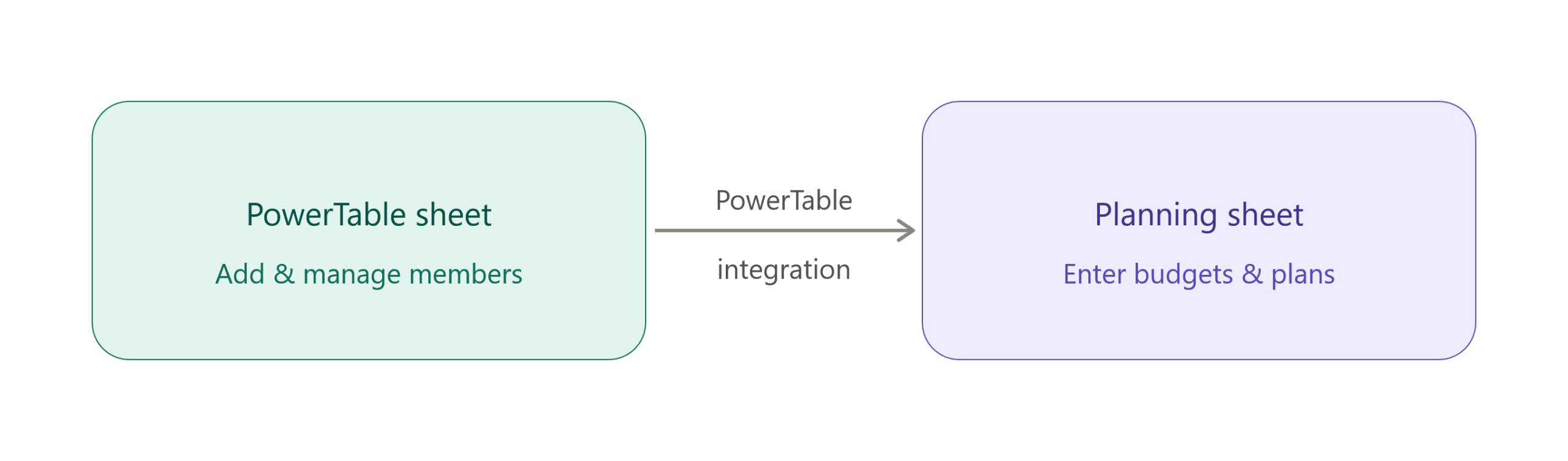
Note: After adding members in PowerTable, once the table is brought back into the semantic model in Direct Lake mode, the real-time Direct Lake refresh automatically propagates the newly added members to your Planning sheet, ensuring they are immediately available for planning. This ensures the Planning sheet's row hierarchy reflects the updated data from the source database.
Insert Rows behaves the way it does by design - and that behavior makes perfect sense for its intended one-off use cases. But those same design choices are exactly what make it unsuitable for adding new dimension members:
Report developers who are building driver-based models and read-only reports: For one-off structural adjustments while designing reports - adding formula nodes, temporary input lines, subtotal rows, or section headers - continue using Insert Rows in Edit mode. This is exactly what the feature is built for.
Stakeholders and business end users - For ongoing operational planning that requires adding new members during active planning cycles, use the designated PowerTable sheet to create those members. Once the table is connected to the semantic model in Direct Lake mode, the newly added members will propagate to your Planning views automatically.




Guides, forums, training and videos for every stage of Fabric Planning adoption, from getting started to full deployment. Open to everyone: explore without login, register to post.

